How to Move a WordPress Site to a New Host Without Losing Email or SEO
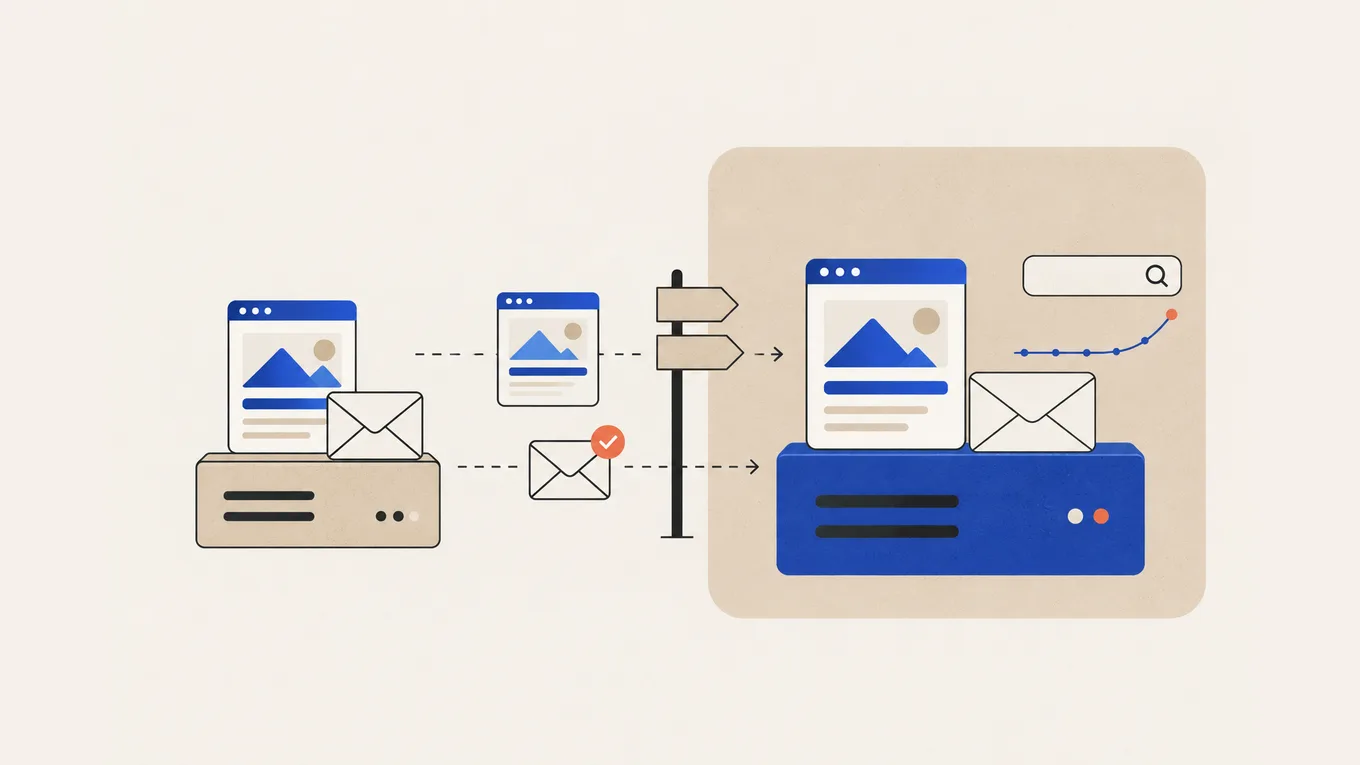
One site owner on Reddit moved to a new host, pointed the domain at it, and the site came up fine. Then customers said their emails were bouncing.
The new host’s DNS had only its default records. Nobody added the records that sent mail to Google Workspace. Copying files and the database is the easy part; domain settings and mailboxes are where a move goes wrong.
Here’s the order I use to move WordPress to a new host so your email keeps arriving and Google sees as little change as possible, whether you do it yourself, let the new host do it, or hire someone.
Find out where your domain, DNS and email live
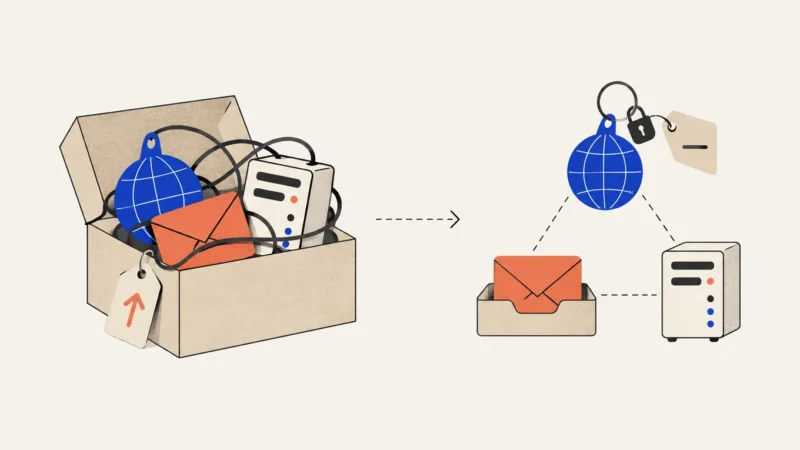
Find your registrar, DNS provider and mail host before copying anything. They often sit in separate accounts; each affects what the move can break.
- Registrar This provider registers and renews your domain. Check that the account is yours and you can log in.
- DNS provider This provider holds your current DNS records. Check your nameservers with a free DNS lookup tool. Nameservers pointing to your old host mean it runs your DNS.
- Mail host This provider stores your mailboxes. Look up your MX records. They point to your old host, Google Workspace, Microsoft 365 or another mail service.
If the domain sits in someone else’s account (a former developer, an agency, the old host), move it into your own account first. Without access, you can’t point the domain anywhere.
| What you found | What it means for the move |
|---|---|
| Mail on Google Workspace, Microsoft 365 or another mail service | Keep its MX and DKIM records as they are, wherever your DNS ends up, and make sure SPF still lists every service that sends mail for you |
| Mail on the old host | Its mailboxes are deleted when you cancel that plan, so the mail moves first |
| DNS on the old host | The records disappear with the old account, so DNS has to live somewhere else before you cancel |
If your email is on the old host
Move the mail as its own small project, before you cancel anything:
- Create matching mailboxes and aliases at the new host or a mail service like Google Workspace or Microsoft 365.
- Copy the old mail across. Most providers offer an IMAP import tool, including Hostinger.
- Switch the MX and DKIM records to the new mail provider’s values, and update SPF so it lists the new provider plus anything else that sends mail for you (newsletters, your site’s contact form).
- Check the old mailbox for a day or two, because some senders still deliver there while the change spreads. Run the import once more at the end.
- Send and receive a test message from every important address.
Only then is the old mailbox safe to lose.
Before you move: the checklist
Prepare before anyone touches the new host. Your backup and DNS records let you go back if something fails.
- Make your own backup of the files and the database, and download it to your computer or cloud storage. A backup on the old server is out of reach once the plan ends.
- Copy every DNS record from your current DNS provider: A, AAAA, CNAME, MX and TXT (SPF, DKIM, DMARC, Google or Microsoft verification). Save a full screenshot or zone file export.
- Lower the TTL on your domain’s records to a few hours, at least a week before the switch. Google recommends this so the change reaches everyone faster.
- Write down the extras a migration often skips: cron jobs, a custom SSL certificate, FTP users, redirects set in the old host’s panel.
- Turn off auto-renew on the old hosting plan. Keep it running after the switch.
- Pick a quiet time for the final copy. Pause edits, comments and form changes, so nothing lands on the old copy after it’s taken. On a store, pause orders during the final copy and switch.
Three ways to move the site
Pick a migration path that fits your site and the time you have.
| Way | When it fits | What it costs |
|---|---|---|
| The new host moves it | A standard WordPress site on a host that offers free migration | Free with the plan |
| You move it with a plugin | A small site without a store, and you’re fine with a backup and restore | Free (some plugins charge for large sites) |
| A Fiverr Pro freelancer moves it | A store with live orders, email on the old host, a large site, or no time | From $100, plus Fiverr’s service fee |
The new host moves it
The new host’s team or migration plugin copies the site from your old host. Check what each option leaves out.
| Host | Who moves the site | Email on the plan |
|---|---|---|
| Hostinger | Hostinger’s team: files and database only (no email, DNS records, cron jobs, custom SSL or FTP accounts) | Free for the first year, then paid |
| Kinsta | Free migrations on every plan | No email hosting; keep a separate mail service |
| Cloudways | A free expert migration, or its own migrator plugin | Paid add-on |
| SiteGround | Its free SiteGround Migrator plugin; ask whether an expert move is included | Included on shared plans |
Their standard website migration doesn’t move your mailboxes or set up your DNS; ask separately if you want help with email. Hostinger tells you when the copy is ready for the switch, and Cloudways says its moves usually take one to two business days. To choose the host itself, see the best WordPress hosting for a first site or the best WooCommerce hosting for a small store.
You move it with a plugin
Duplicator, All-in-One WP Migration and WPvivid all work the same way:
- Install the plugin on the old site and build a package (files plus database).
- Download the package to your computer.
- On the new host, install a fresh WordPress (or the plugin’s installer) and import the package.
- Log in on the new copy and check it before you change DNS.
A host’s own migrator moves sites into that host. SiteGround Migrator only moves sites to SiteGround. Large sites are where plugins fail most often. If an import stalls twice or exceeds the upload limit, ask the host’s support or hand it over.
A Fiverr Pro freelancer moves it
I recommend Fiverr Pro for a store, a site with mail on the old host, or a move where you’d rather not touch DNS. Fiverr vets Pro freelancers by hand for their experience, portfolio and service record before they get the Pro badge. Start with a small first order. Give them a separate SFTP user and database access instead of your main passwords, keep your own backup, and keep the hosting and domain in your name. See what a WordPress migration costs for price tiers.
Test the new copy before you switch
Test the new copy before changing DNS. Visitors still see the old site.
Use your host’s temporary address or preview link. Otherwise, edit your computer’s hosts file so only your browser loads the domain from the new server. The hosts-file method also tests the real address, its redirects and checkout.
On the test copy, check:
- the home page, a few posts and pages, and images
- every form: send one and confirm the email arrives
- the cart, checkout and payment, if you run a store
- logging in to wp-admin and saving a post
While you test, keep the copy out of Google: turn on “Discourage search engines” in Settings → Reading, or let your host add a noindex rule. Keep your Google Search Console verification file or tag. Add your domain to the new hosting account, and ask whether its free SSL certificate is issued before or right after the switch.
Switch DNS without losing email
There are two ways to point the domain at the new host, and both can touch your email.
Change the website’s records only. At your current DNS provider, enter the records the new host gives you for the domain and for www, usually an A record with the new server’s address. If you have an old AAAA record and the new host gives you no IPv6 address, remove it.
Google Workspace or Microsoft 365 MX records point elsewhere, so mail is untouched. If your mail is still on the old host, check where the MX record points first: on many hosts it’s a name like mail.yourdomain.com that uses the same server address, and changing it moves your mail too.
Change the nameservers. This makes the new host’s DNS the one in charge. Your old records aren’t copied; the new zone usually starts with default records. Before you switch, re-create your saved DNS records in the new zone: MX, SPF, DKIM, DMARC and any verification records. Skip this and your mail can stop once the change spreads. If DNSSEC is turned on for your domain, ask both DNS providers how to handle it before you switch, because a leftover DNSSEC setting can make the whole domain stop loading.
Before switching, remove noindex and untick “Discourage search engines” on the new copy. Leaving it on is one of the most common ways a move hurts rankings.
After the switch, the change takes a few hours to reach most people and can take up to 48 hours everywhere. Some visitors see the old site, others the new one. Keep the old host running.
If the domain still shows the old site or a “parked” page after a day, check the records with a public DNS checker. Usually a record points to the wrong place, the domain isn’t added in the new host’s panel yet, or an old record is still cached.
For a serious problem, point DNS back to the old server. On a store, first check for orders on the new copy, because switching back leaves them there.
Will your SEO drop when you move WordPress to a new host?
Usually not, if you’re careful. When the domain and every page address stay the same, you don’t need redirects. Google’s guide to site moves without URL changes covers exactly this case and says a temporary drop in crawling is normal, followed by an increase over the next few days. Keeping the same addresses doesn’t guarantee your rankings, but it removes most of the risk.
What does cause drops after a move:
- the noindex setting left on after the switch
- the test copy on a temporary address getting indexed
- the site down for hours, or much slower on the new server
- www and non-www, or http and https, set up differently than before
- a firewall or security plugin on the new host blocking Googlebot
- pages or images missing from the copy
After the switch, use Google Search Console’s URL Inspection on your home page and two or three important pages. Confirm Google can reach them on the new server, and watch the Pages report over the next couple of weeks. Delete or password-protect the preview copy when you’re done.
For unexplained traffic drops, a WordPress SEO expert can check the technical side.
After the switch: when to cancel the old host
Before cancelling the old plan, test what visitors and customers use:
- Send an email from each important mailbox to a Gmail, an Outlook and a Yahoo address, and reply back.
- Submit your contact form and check the message arrives. Site emails often land in spam from a new server; sending them through an authenticated mail service with an SMTP plugin usually fixes it. Here’s how to fix WordPress email and contact forms not sending.
- Check that every page loads over https with no security warning.
- Place a test order if you run a store.
Cancel only when all of these are true:
- The old server gets no more visits (Google’s rule for shutting old hosting down). I keep it at least a week or two, and longer while it still gets traffic. If you can’t see its logs, ask the old host.
- The old mailboxes have stopped receiving mail and the last import is done.
- Your DNS no longer lives on the old host.
- Email sends and receives, and contact form messages arrive.
Check the old host’s refund rules if you prepaid, then cancel the hosting plan. Check domain renewal separately: cancelling hosting doesn’t always cancel the domain. For missing content after a move, see how to restore a lost or deleted WordPress site.
Summary
Moving a WordPress site to a new host takes more checking than copying. The risk sits in the DNS records and the mailboxes, so list them, move the mail first if it lives on the old host, and test before you switch. If you’d rather not touch DNS on a site that earns money, a Fiverr Pro migration is a small, contained order.
FAQ
Will I lose my email when I change hosts?
Not if you plan for it. Email on Google Workspace or Microsoft 365 keeps working as long as its DNS records stay in place. Email hosted by your old host is deleted when you cancel that plan, so set up the new mailboxes and copy your mail before you cancel.
Will my site go offline during the move?
Usually not. The old site stays live during copying and testing, and both servers answer while DNS changes spread. A store may pause orders for a short time during the final copy and switch.
Will my Google rankings drop after moving hosts?
Usually not with the same domain and page addresses, though nothing guarantees it. Google may crawl the site less for a few days. Drops usually come from mistakes like a noindex left on, a slow new server or a firewall blocking Googlebot.
How long does the DNS change take?
A few hours for most visitors, and up to 48 hours everywhere. Lowering your TTL a week before the move helps it go faster.
Do I have to move my domain to the new host?
No. Keep the domain at your registrar and change its DNS records. Transferring the domain is a separate, optional step.
Can I keep my email at the old host after I move the site?
Only while you keep paying for that hosting plan and its mail records stay in your DNS. A separate mail service keeps email independent of your web host.
Can I migrate WordPress to new hosting myself?
Yes, for a small site without a store. Ask the new host first, since many move sites for free, or use a migration plugin such as Duplicator or All-in-One WP Migration, then test the copy before you change DNS. Large sites and stores are safer with the host's support or a freelancer.
Related Posts

How Much Does a WordPress Migration Cost (Host, Domain, HTTPS)

GoDaddy Alternatives for WordPress: Where to Move and How
Bluehost Alternatives for WordPress: Where to Move and How

Best SiteGround Alternatives for WordPress

How to Hire Someone to Fix WordPress Email and Contact Forms Not Sending